Αρχική Σελίδα

ιστολόγιο περίπου MSI MAG 321CUP Monitors Face Brightness Control Issues

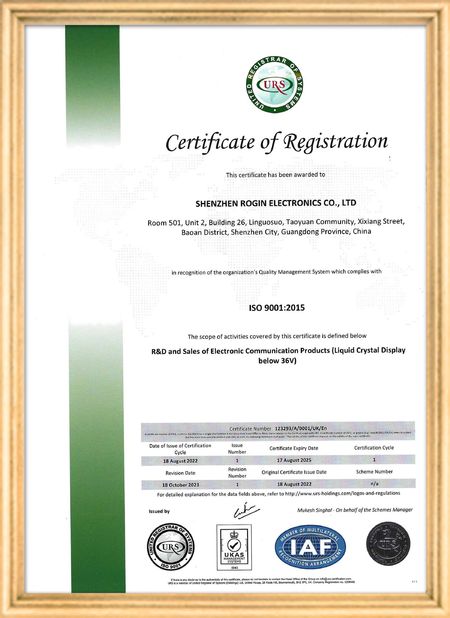
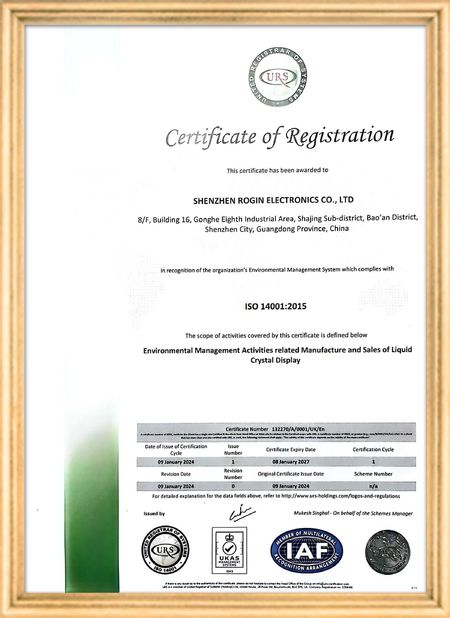
Πιστοποίηση
Κίνα Shenzhen Rogin Electronics Co., Ltd. Πιστοποιήσεις
Αναθεωρήσεις πελατών
Αυτές οι οθόνες λειτουργούν τέλεια στα τραμ. Υψηλή φωτεινότητα, αντι λάμψη και σταθερή ακόμη και υπό μακροχρόνιες δονήσεις.

—— Κάσπερ Σόρενσεν

Ακριβή χρώματα, γρήγορη απόκριση και κανονική εκκίνηση σε χαμηλή θερμοκρασία. Ταιριάζει απόλυτα στο σκληρό περιβάλλον των συστημάτων εντός τρένων.

—— Νικόλ Μπέκερ

Εύκολη εγκατάσταση, ευρύ φάσμα θερμοκρασιών και εξαιρετική ορατότητα σε φωτεινά περιβάλλοντα. Αυτές οι οθόνες καλύπτουν όλες τις απαιτήσεις του βιομηχανικού μας εξοπλισμού.

—— Τζιοβάνι.

Αυτές οι οθόνες LCD υψηλής φωτεινότητας είναι ιδανικές για τους βιομηχανικούς πίνακες ελέγχου μας. Παραμένουν κρυστάλλινες ακόμα και κάτω από άμεσο φως εργαστηρίου και λειτουργούν 24/7 χωρίς κανένα πρόβλημα. Εξαιρετική ποιότητα βιομηχανικού επιπέδου.

—— Lukas Müller

Είμαι Online Chat Now
επιχείρηση ιστολόγιο
MSI MAG 321CUP Monitors Face Brightness Control Issues
τα τελευταία νέα της εταιρείας για MSI MAG 321CUP Monitors Face Brightness Control Issues

Have you ever been ready to adjust your monitor’s brightness, only to find that the official tutorial video no longer works? For users of the MSI MAG 321CUP monitor, this guide provides alternative solutions to adjust brightness settings, even if the manufacturer’s original resources are inaccessible.

Brightness adjustments can typically be made through three primary methods: the monitor’s physical buttons, the operating system’s display settings, or dedicated software provided by MSI. If the official video is unavailable, these steps will help you troubleshoot effectively.

1. Using Physical Buttons

The MSI MAG 321CUP monitor is equipped with physical buttons to access its On-Screen Display (OSD) menu. These buttons allow users to modify settings such as brightness and contrast. Refer to the user manual for specific button locations and navigation instructions. If the manual is unavailable, gently press or touch the buttons along the monitor’s bezel to open the OSD menu, then locate the brightness adjustment option.

2. Operating System Settings

Both Windows and macOS include built-in display settings for brightness control. On Windows, navigate to Settings > System > Display and use the brightness slider. For macOS, open System Preferences > Displays to adjust brightness. Ensure your operating system recognizes the monitor and that display drivers are up to date.

3. MSI Software Solutions

MSI may offer specialized software to manage monitor settings, including brightness. If such software is installed, check its configuration options for brightness controls. If not, visit MSI’s official website and download the latest drivers or utilities tailored to your monitor model.

4. Troubleshooting Persistent Issues

If none of the above methods work, potential hardware or software issues may be present. Verify that all cables are securely connected, try using a different cable, or test the monitor with another device. If problems persist, contact MSI’s customer support or consult a professional technician.

Χρόνος μπαρ : 2026-05-27 00:00:00 >> blog list
Στοιχεία επικοινωνίας
Shenzhen Rogin Electronics Co., Ltd.

Υπεύθυνος Επικοινωνίας: Mr. Kelvin Zhu

Τηλ.:: +86 15919061504

Στείλετε το ερώτημά σας απευθείας σε εμάς (0 / 3000)